Criteria for Evaluating the Storage Period and Playback Restrictions of Broadcast VOD Downloads
How Broadcasters Set VOD Download Expiration Periods
Downloading a broadcast program does not normally give you a permanent video file. In most cases, it gives the app temporary permission to play an encrypted copy while certain conditions remain valid.
Before relying on a download for a flight, overseas trip, hospital stay, commute, or another period without internet access, determine what type of access you actually have. A program included with a monthly subscription may follow different rules from a separately rented episode, a purchased VOD, or a free replay offered by a broadcaster.
The safest approach is to check four separate questions: how long the program remains available, how long the downloaded copy remains valid, whether a shorter countdown begins after playback starts, and whether your account or payment status must remain active.
First Identify Whether the VOD Is Included, Rented, or Purchased
The word “download” describes how the content is stored on your device, not the rights you received. Two downloaded episodes in the same app may therefore have completely different expiration rules.
Subscription-based offline viewing
A program included in a monthly OTT or broadcaster subscription is usually licensed for offline viewing only while the account, plan and program remain eligible. The downloaded data may still occupy storage on the device after the subscription ends, but that does not mean the app must continue playing it.
This type of download should be treated as temporary access. It is suitable when you intend to watch soon, but it should not be used as a long-term archive of a drama, documentary or entertainment program.
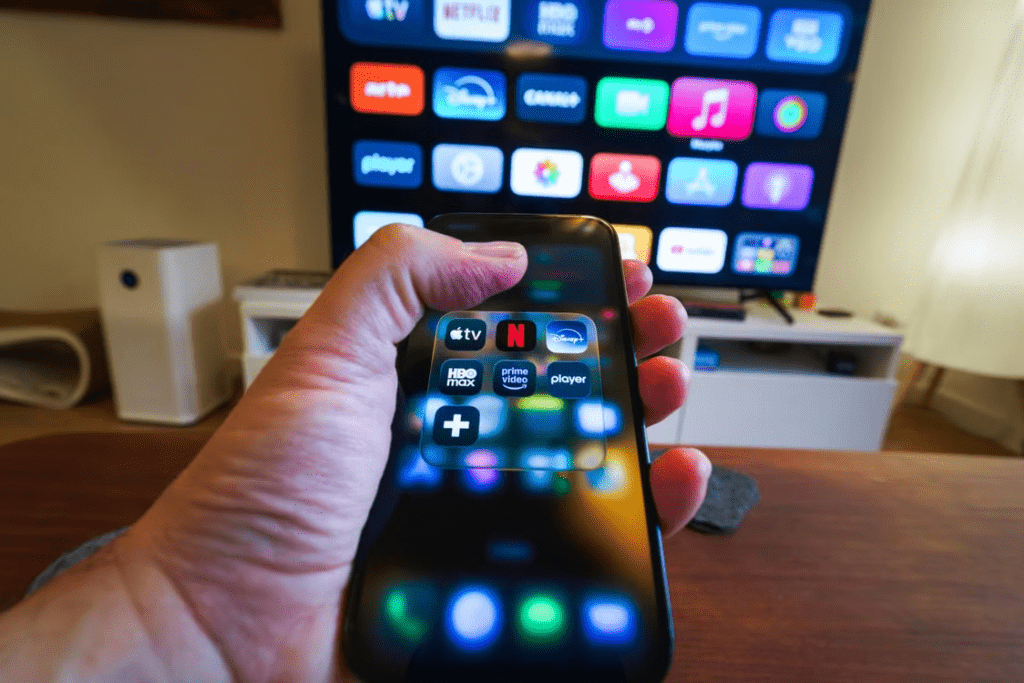
The same title may also disappear from the download menu even while it remains streamable. Netflix, for example, explains that some titles cannot be downloaded because of content rights, exclusive licensing, cost, regional availability or other factors.
This means that the absence of a download button is not necessarily a technical problem. It may reflect a title-level licensing restriction.
Individually rented VOD
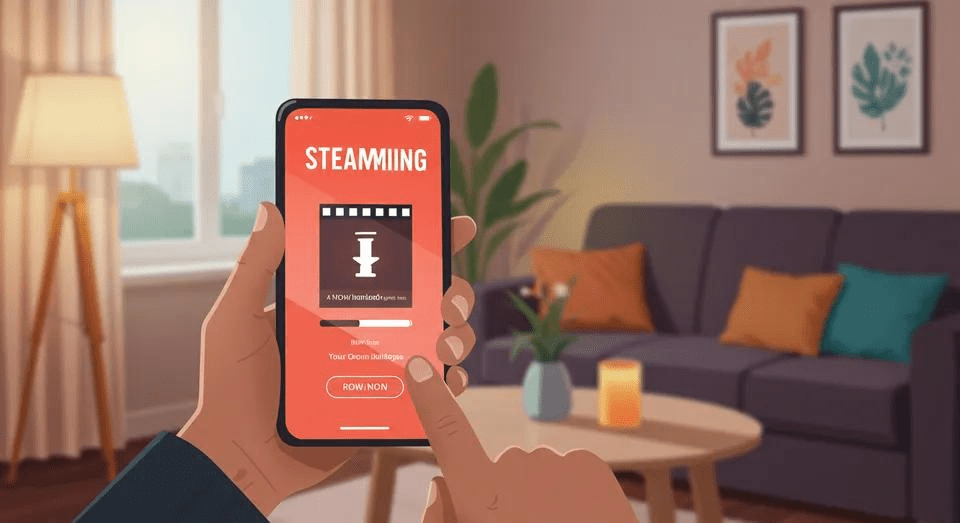
A rental commonly has at least one contractual deadline. Some services also apply a second, shorter viewing period after the user begins playback.
For example, a rental may provide a certain number of days to start watching and then a shorter window in which to finish. However, the exact period can differ by title, country and provider. Google therefore directs users to check the “Rental Period” shown in the additional information for the individual movie or show.
For the reader, the important distinction is this:
| Period to check | What it controls |
|---|---|
| Rental period | How long the transaction remains usable |
| Download expiration | How long the offline copy remains authorized |
| Playback window | How long you have after first pressing Play |
| Content availability | Whether the provider still has the right to offer the title |
Do not start a rented program merely to test the picture or subtitles unless you are ready to watch it. On services that activate a playback countdown, even a brief test may begin the shorter viewing window.
Purchased VOD
A purchased VOD may remain in the account library longer than a rental, but “purchase” still does not necessarily mean that the user receives an unrestricted MP4 file.
The content may remain tied to the provider’s account system, supported apps, territorial availability and technical playback rules. Google’s YouTube help page, for example, distinguishes rentals from purchases and describes purchased titles as available through the user’s account rather than as transferable standalone files.
A purchase is therefore better understood as continuing access under the platform’s usage rules. Before paying more for a purchase instead of a rental, check where it can be watched, whether offline playback is supported and what happens if the service or device support changes.
Check the Four Conditions That Can End Offline Playback
The date displayed beside a download is important, but it is not always the only condition controlling playback.
1. The title-level expiration date
A downloaded program may display an explicit expiration date or remaining-time indicator. When that date arrives, the user may need to connect to the internet and renew the download license, delete and download the program again, or stream it instead.
Renewal is not guaranteed. If the title is no longer licensed, is no longer included in the plan or has reached a download limit, the user may be unable to restore offline access.
Netflix advises users with an expired title to reconnect and attempt to renew or download it again. It also notes that incorrect device date and time settings can sometimes interfere with expiration verification. citeturn556309search0
The practical lesson is to open the app while connected to the internet before a long trip. Confirm that the title still appears under Downloads and can begin playing.
2. The countdown after first playback
Some rentals and licensed downloads use two clocks: one before playback begins and another after the first play.
This matters because a title showing several days of remaining availability may become subject to a much shorter completion window once started. The exact duration should be checked on the title page, rental receipt or provider’s usage rules rather than assumed from another service.
When preparing content for travel, avoid opening every episode in advance. Test the app with one noncritical title, then leave the programs you plan to watch unopened until needed.
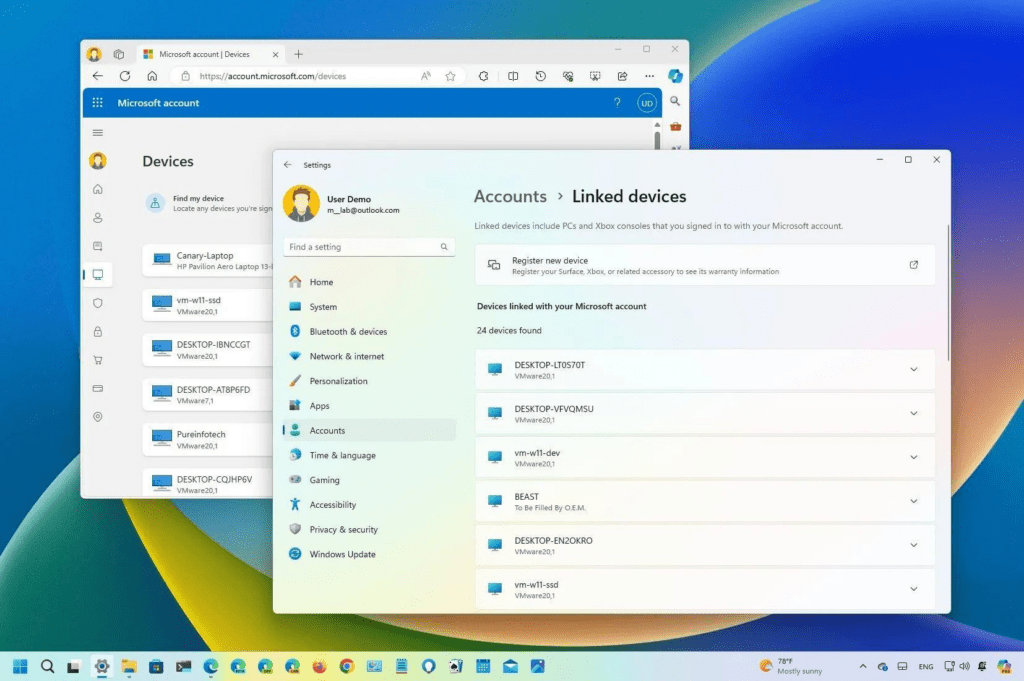
3. Account, plan and device authorization
Offline playback may require the following conditions to remain valid:
- The user is signed in to the account that created the download.
- The subscription or rental remains active.
- The current plan still includes downloads.
- The device remains registered or authorized.
- The app can periodically reconnect to verify the license.
A payment failure, account sign-out, plan downgrade or removal of the device from the account can affect playback even when the visible download date has not passed.
Device and plan limits also vary. They should be checked on the provider’s current support page rather than described as a universal range. Netflix, for instance, publishes a specific monthly download limit for its ad-supported plan, but that rule is platform- and plan-specific and may later change.
Some titles can also have limits on how many times they may be downloaded during a year. Deleting and repeatedly downloading the same program is therefore not always harmless. Netflix confirms that certain titles are subject to annual download limits per account.
4. App data and local storage
A downloaded VOD is normally stored as application-controlled data rather than as a normal video that can be transferred to VLC, another phone or a friend’s account. Copying the visible folders does not transfer the playback license.
Deleting the app, clearing its storage, resetting the device or using an operating-system cleanup function may remove the download. A routine app update does not automatically mean every download will be erased, so the article should not present this as an expected security mechanism. The greater risks are deleting application data, changing devices or losing account authorization.
Before performing storage cleanup, check how much space the app is using and delete individual completed episodes from inside the app. This reduces the chance of removing programs that cannot be downloaded again.
Use This Check Before Depending on a Download
Before leaving a reliable internet connection, open the download section and inspect the exact program rather than relying on the general subscription description.
Confirm that the correct episode is fully downloaded, not merely queued or partially stored. Look for an expiration date, remaining-time label, warning icon or message stating that the title must reconnect soon. Check whether the content is included with the subscription, rented separately or purchased.
Then verify the following:
- The account and payment status are active.
- The current plan still permits downloads.
- The app is signed in to the correct account.
- The device has automatic date and time enabled.
- The title appears in the app’s offline library.
- Playback begins after airplane mode or mobile data is temporarily disabled.
- Sufficient time remains to finish the title.
- The destination country does not create a known availability or account-verification issue.
Testing offline playback is especially important, but do not perform the test on a time-limited rental unless you understand whether pressing Play starts the viewing countdown.
If a downloaded episode becomes unavailable unexpectedly, first reconnect to the internet, confirm the account and plan status, verify the device date and time, and look for a renewal or re-download option. Do not immediately uninstall the app. Reinstallation may erase all remaining downloads and will not restore content that is no longer licensed.
The final decision is straightforward: use downloads for near-term offline viewing, not permanent preservation. For a trip or other important offline period, download shortly before departure, verify each title inside the official app and finish time-limited rentals before their individual deadline.